The library
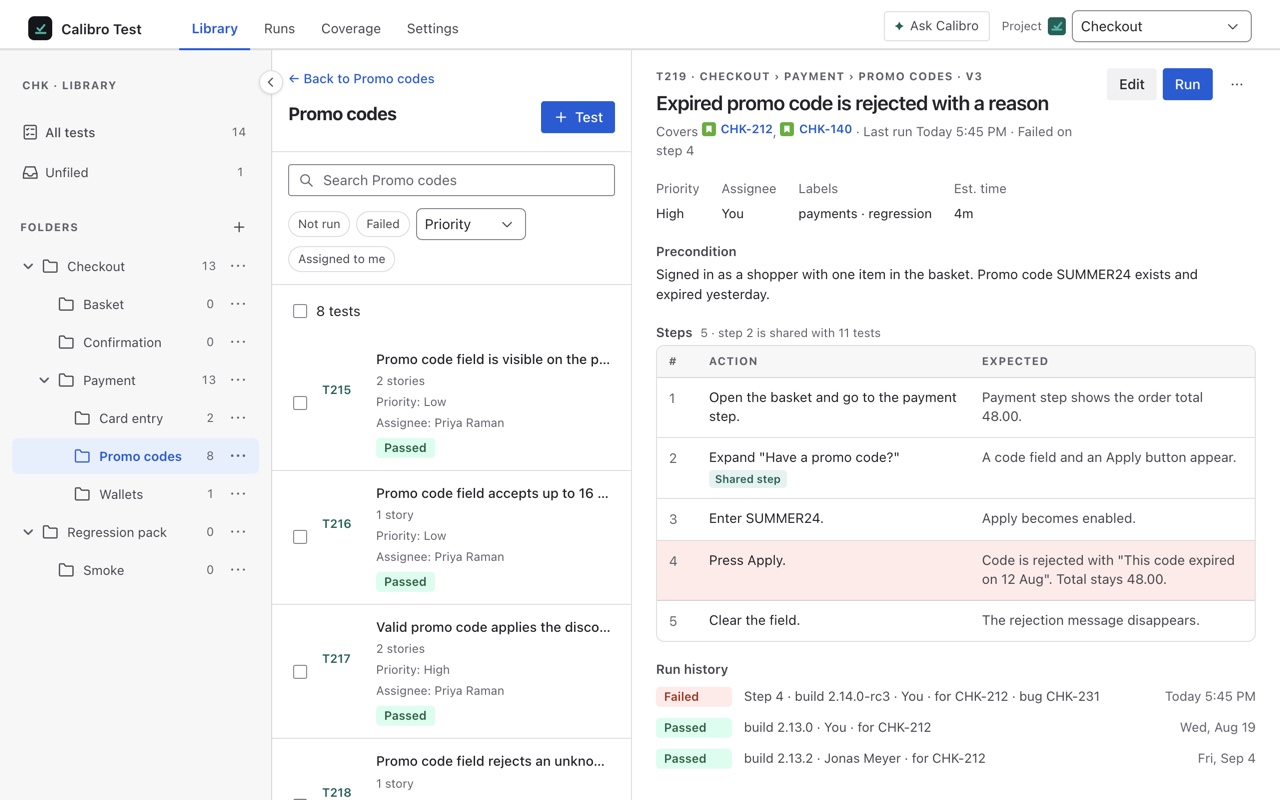
The Library tab is three columns: the folder tree, the tests in whatever is selected, and the selected test in full. Pick a project at the top; every test belongs to one.
Folders
Folders group tests by feature, team or release, and nest up to four deep. New folder at the top level, New subfolder from a folder's menu, and rename, move and delete from the same menu. Tests with no folder sit under Unfiled, and All tests is the whole project.
To file tests, drag them onto a folder, or select several and Move to…. A moved test keeps its steps, its story links and its run history. A folder can only be deleted when it is empty — the menu says how many tests or subfolders are inside and that they have to move first, rather than offering a delete that takes them with it.
The folder page
Open a folder and its page sums it up — 18 tests in 3 folders · 12 passing · 2 failing · 4 not run — with the tests directly in it, its subfolders with their own tallies, and Run all to start every test in it as one batch. A very large folder says its tally covers the first hundred tests.
Link Jira component on the folder page is the connection to the Tests panel. Link the Checkout folder to the Checkout component and every story carrying that component shows the folder's tests as an Existing strip with Link all beside it, so the regression set for an area is offered on every story in that area. Optional, one component per folder.
Finding tests
The search box finds tests by title or key, within the selected folder or across the project. Filters narrow to Not run, a priority, or an owner — Assigned to me is one click. A long list loads in pages with Show more and always says how many of how many it is showing; a list that stops at the first hundred says so and points you at search rather than looking complete.
The test detail
Select a test and the right-hand column shows everything about it: key, folder path and version; the stories it covers, each one a link into Jira; its last run and, if that failed, on which step; priority, owner, labels and estimate; the precondition; every step; and the run history — every run, who ran it, the build, the result and the bug. Run starts one from here; Edit opens the editor; Delete removes the test, keeping its runs in every story's history but ending its say in their coverage.
Shared steps
A step that many tests begin with — sign in, open the basket — can be made shared from its menu in the editor. It is kept once for the project and inserted into other tests with Insert shared step, which lists the project's shared steps and how many tests use each. In a test, a shared step is marked as such with the count of tests it is shared with. It is the difference between one login sequence and forty copies of it.