The editor
The canvas is Excalidraw — the real thing, not something built to resemble it. Every shape, every shortcut, the arrow binding, the shape library, the undo stack: all of it is exactly what you'd get from Excalidraw on its own. What Calibro Sketch adds sits in a thin app bar above the canvas.
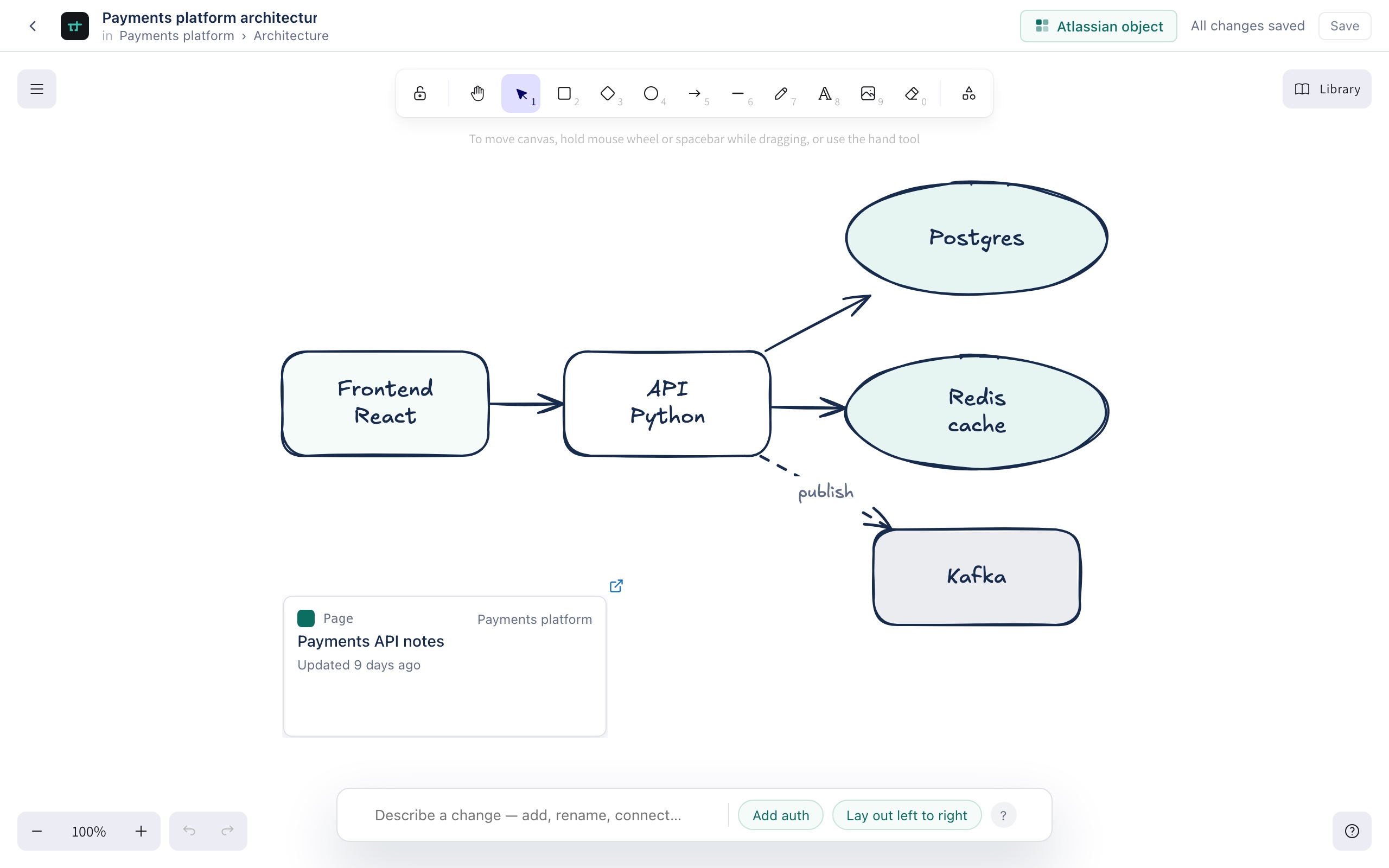
The app bar
Give the Sketch a name in the title field — it starts as Untitled Sketch until you do. Underneath, a breadcrumb shows which space and page the Sketch belongs to, once that's known. The Atlassian object button is how you put a live Confluence page on the canvas — see Adding a live card.
There's no Save button
Calibro Sketch saves as you draw. A status next to the title tells you where things stand:
If someone else saves the same Sketch while you're both looking at it, your next save is refused rather than silently overwriting theirs. Reopen the Sketch to get their changes — copy anything you need from your screen first, since reopening replaces what you see.
Ask for changes in words
The bar along the bottom of the canvas takes instructions in plain language and applies them to the diagram on screen: “add an authentication service”, “put a queue between the API and Postgres”, “rename Redis to Session cache”, “lay this out left to right”. Select a shape first for anything that says this or these — the chips beside the bar suggest what fits the current selection, and the ? opens the full list of things it understands.
Every change lands as ordinary Excalidraw elements, so your own undo reverses it — and anything you've arranged by hand stays where you put it; only what's new gets placed. The AI runs on Atlassian-hosted Claude models through Forge, so instructions and diagrams never leave your site. If it can't run — the daily limit is reached, or the model is unreachable — the status line says so plainly instead of guessing.