Adding a live card
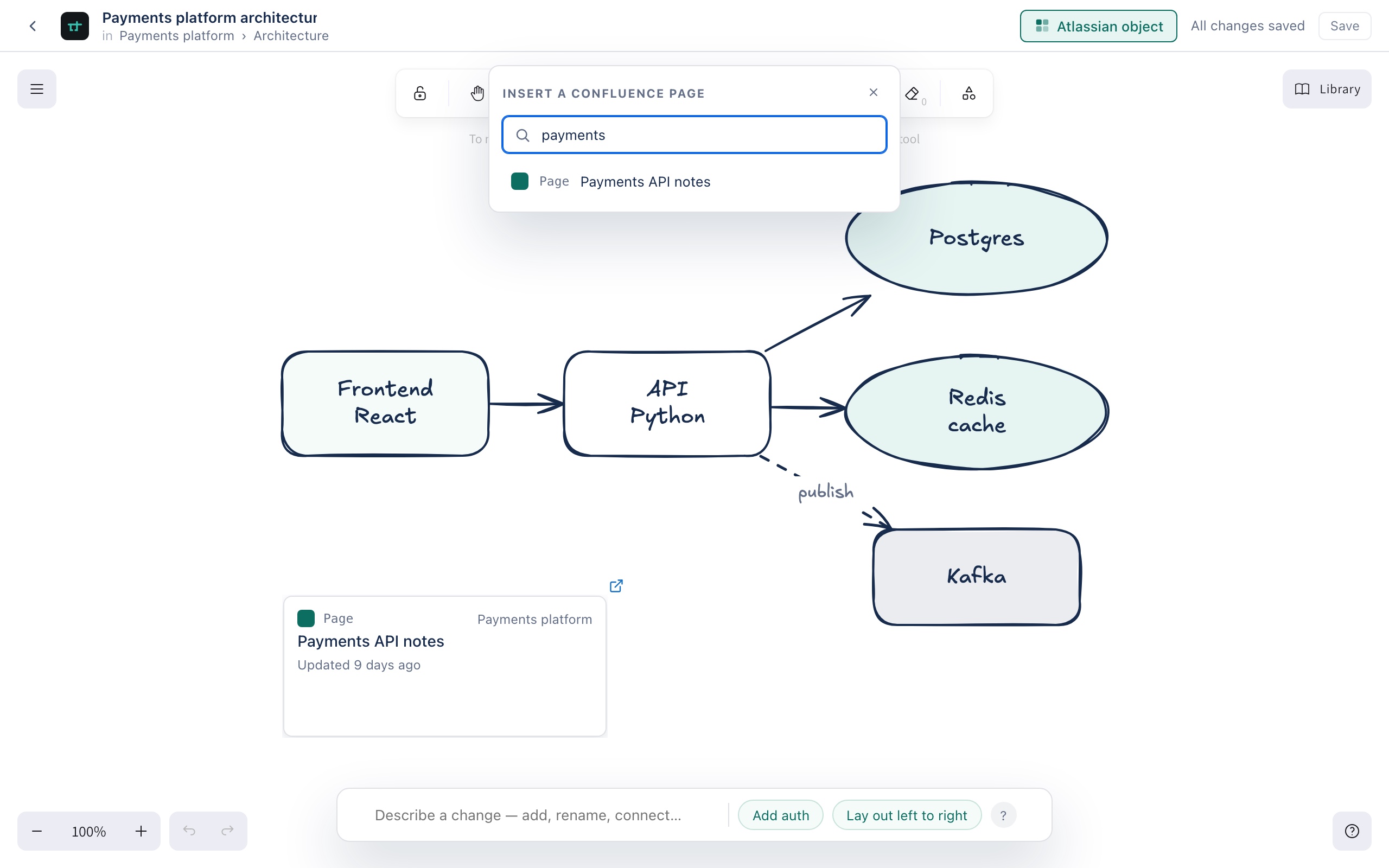
A Confluence page on the canvas is a card that reads its own state, not a box you labelled by hand. Choose Atlassian object in the app bar to open the search.
Searching or pasting
- Type a few words of a page title, or paste a link you already have open.
- If what you typed is a page link, that exact page resolves directly — you won't see a results list for it. Otherwise, matching pages appear most relevant first.
- Press Enter for the top result, or click any other one.
You can also paste a URL straight onto the canvas without opening the search at all — a recognised Atlassian link becomes a card wherever you dropped it.
A full Confluence page link resolves directly. Confluence's shortened /wiki/x/… links don't — paste the full page URL instead, and the card will resolve normally.
What the card shows
A Confluence page card fetches its title, space and when it was last updated live — not typed in and not saved into the diagram. Select it for a link that opens the page.
A page that's been deleted, or one you no longer have access to, shows as unavailable rather than disappearing or breaking the diagram: “This page could not be loaded. It may have been deleted, or you may not have access.” The card stays on the canvas, still pointing at the same page, in case access is restored later.
A card behaves like any other Excalidraw element once it's on the canvas — drag it, resize it, group it, or bind an arrow to it.