Embedding a Sketch on a page
Type /sketch anywhere in the Confluence page editor. If the space has no Sketches yet, or you choose to start fresh, you're straight into a blank canvas — there's no separate configuration step first. Close the editor and the Sketch is on the page.
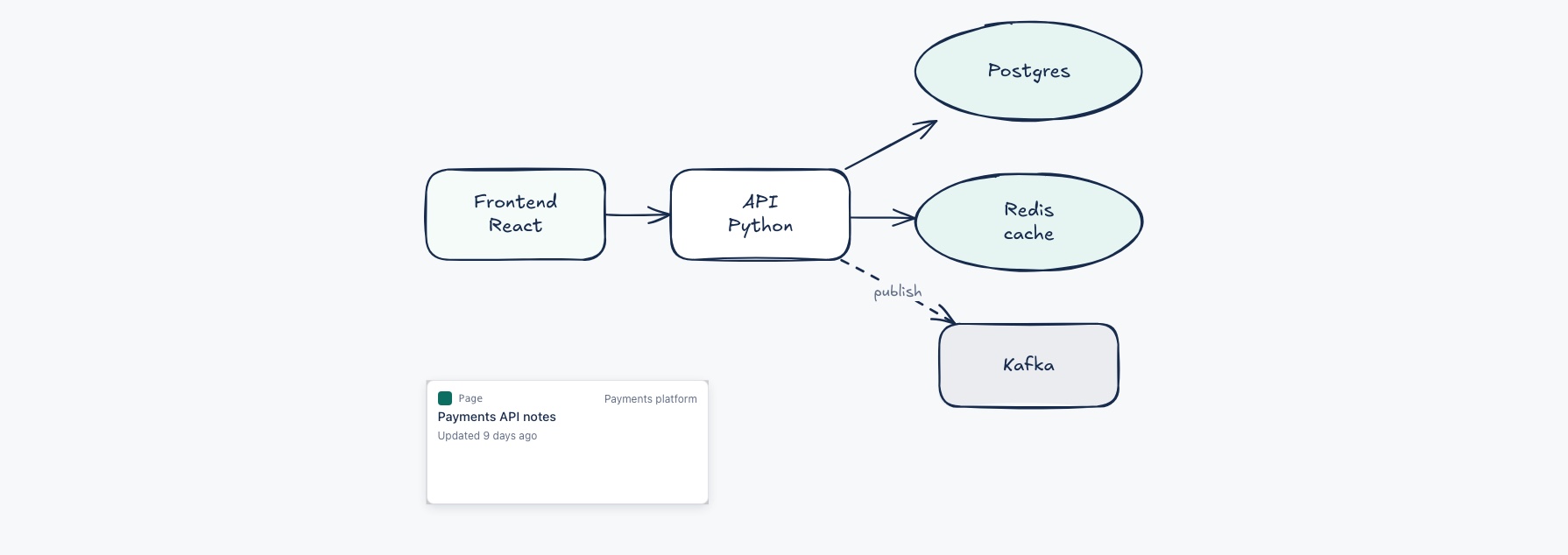
A picture, except the cards
Rendering a Sketch as a static image on the page means a page with several diagrams on it still loads fast, rather than becoming several editors someone has to wait for. The one exception is any Confluence page card on the canvas: those stay live, and read their current state without anyone reopening the diagram.
The picture is sized from the drawing's own proportions, capped so a tall diagram doesn't take over the page, and that height doesn't change when you set the macro to Go wide or Go full width — a wider layout gives it more room across, and the drawing centres in it. When the diagram is bigger than that box can show, the two sections below are how you read it.
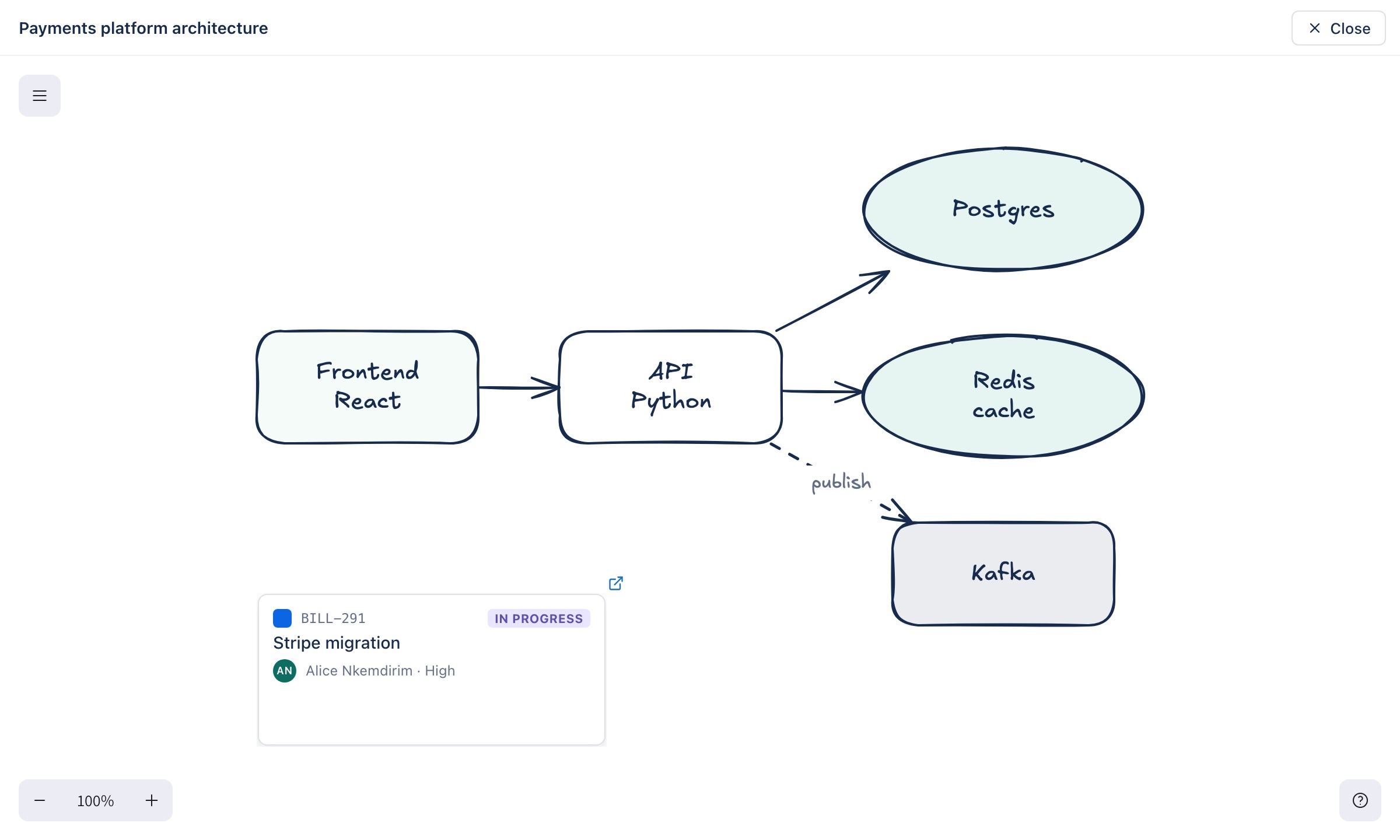
Reading it at full size
Double-click the drawing, or hover over it and choose Full size in its top-right corner. The diagram opens across the whole window, fitted to it, in a read-only view with Excalidraw's own controls: scroll to pan, pinch or use the zoom buttons in the corner, and the live cards are still live and still open what they point to. Esc, the Close button or a click outside brings you back to the page. Nothing in this view can change the Sketch.
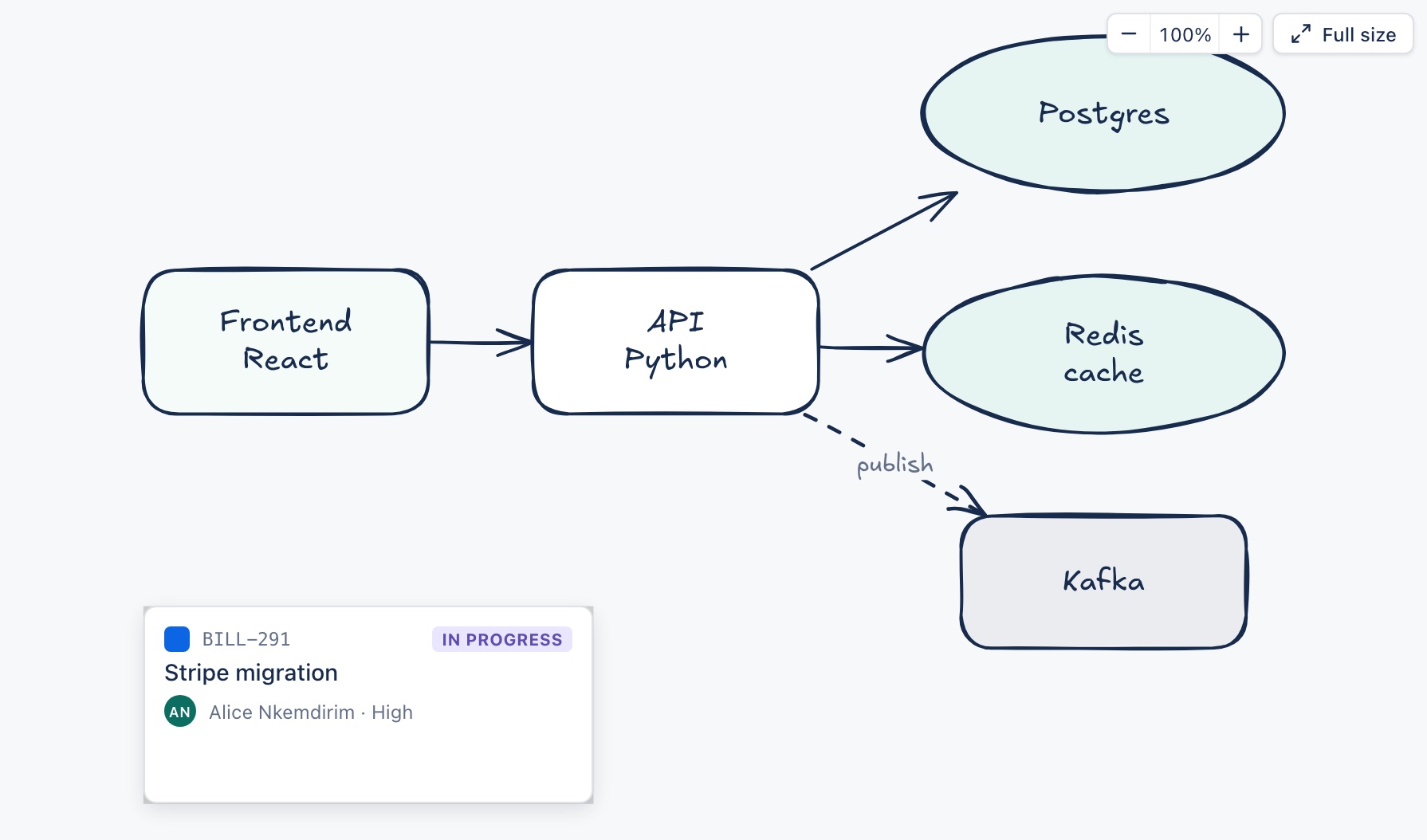
Zooming and panning on the page
You don't have to leave the page. Pinch on a trackpad, or hold Ctrl (⌘ on a Mac) and scroll, and the drawing zooms around your pointer; the − and + buttons zoom about the centre, from 25% up to 800%. At any zoom, drag the drawing to move it around — the cursor is a hand to say so — and it will always keep at least a quarter of itself in view, so it can't be lost off the side. Click the percentage to put it back the way it was.
A plain scroll, without Ctrl, scrolls the page as usual. A diagram that grabbed the scroll wheel whenever the pointer crossed it would be a worse page to read, and the page comes first.
Editing it again
There's no click-to-edit button on the drawing itself. Select the macro and use Confluence's own toolbar — the same edit, align, copy and delete controls any macro gets — and choose Edit to reopen it in the full editor.
Embedding stores a reference to the Sketch, never a copy of it. The same diagram on three pages is one diagram — edit it from any of them and all three are right, instead of three copies that drift apart at their own speeds.
A macro pointed at a Sketch that's been deleted, or one pasted in from elsewhere, shows “No Sketch chosen — select this macro and choose edit to pick or draw one.” An empty Sketch — one nothing has been drawn in yet — says so too, rather than rendering a blank rectangle.