Draw your first Sketch
A Sketch isn't reached from Confluence's own Create menu — that menu is first-party content types only. Instead, it lives in the space's own navigation, alongside whatever else the space has. Open a space, find Calibro Sketch in the sidebar, and you'll see every Sketch that space already has, or an empty state if it doesn't have any yet.
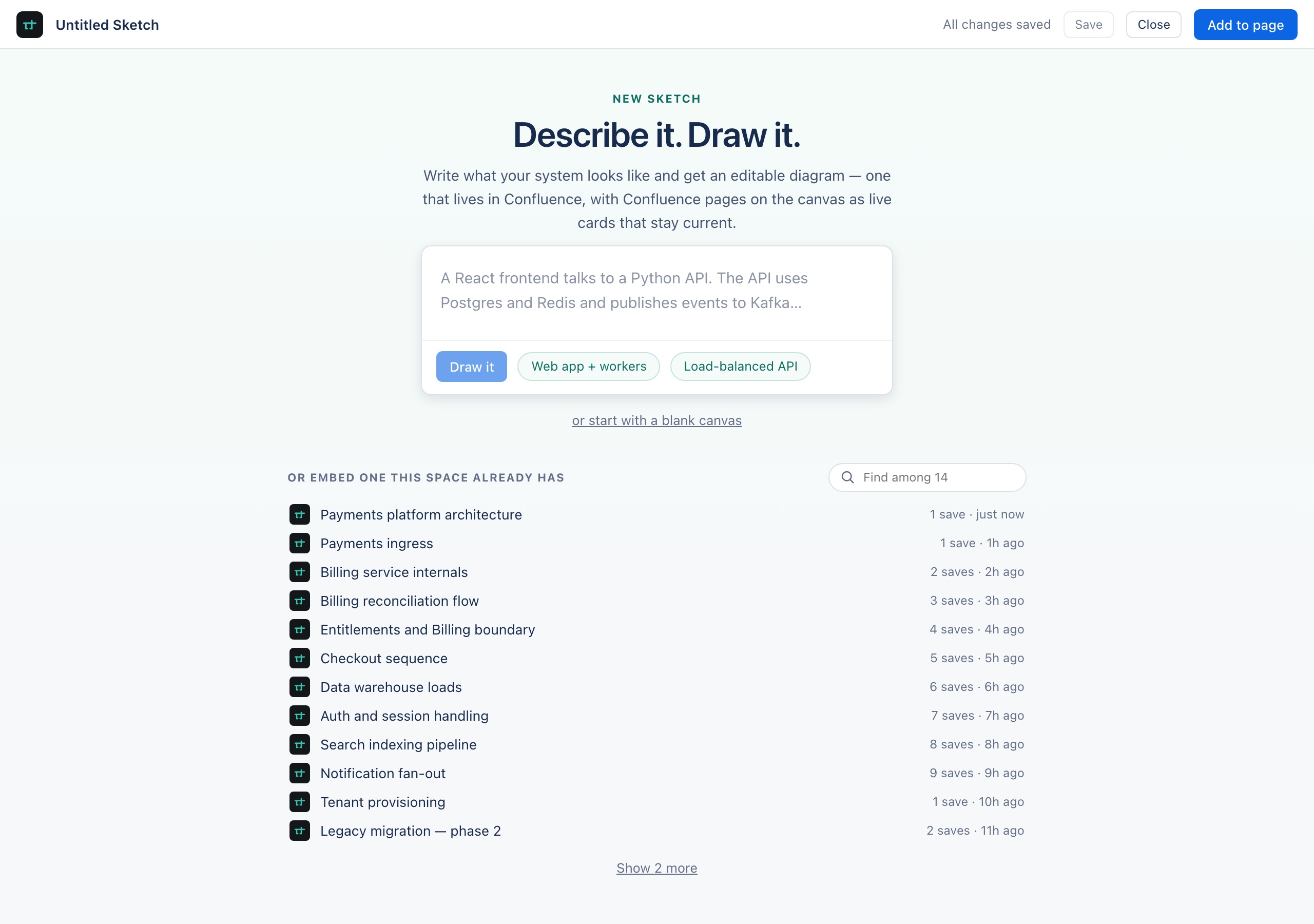
/sketch on a Confluence page opens the same screen, so this is also what you see the first time you insert a Sketch into a page.- Describe what you're building in the prompt box — “a React frontend talks to a Python API, which uses Postgres and Redis” — and choose Draw it. AI draws it as real, editable elements, laid out and wired up. The two chips fill the box with worked examples, and ⌘-Enter submits.
- Or choose start with a blank canvas to draw by hand,
- or, if the space already has Sketches, pick one from the list underneath instead of starting a new one.
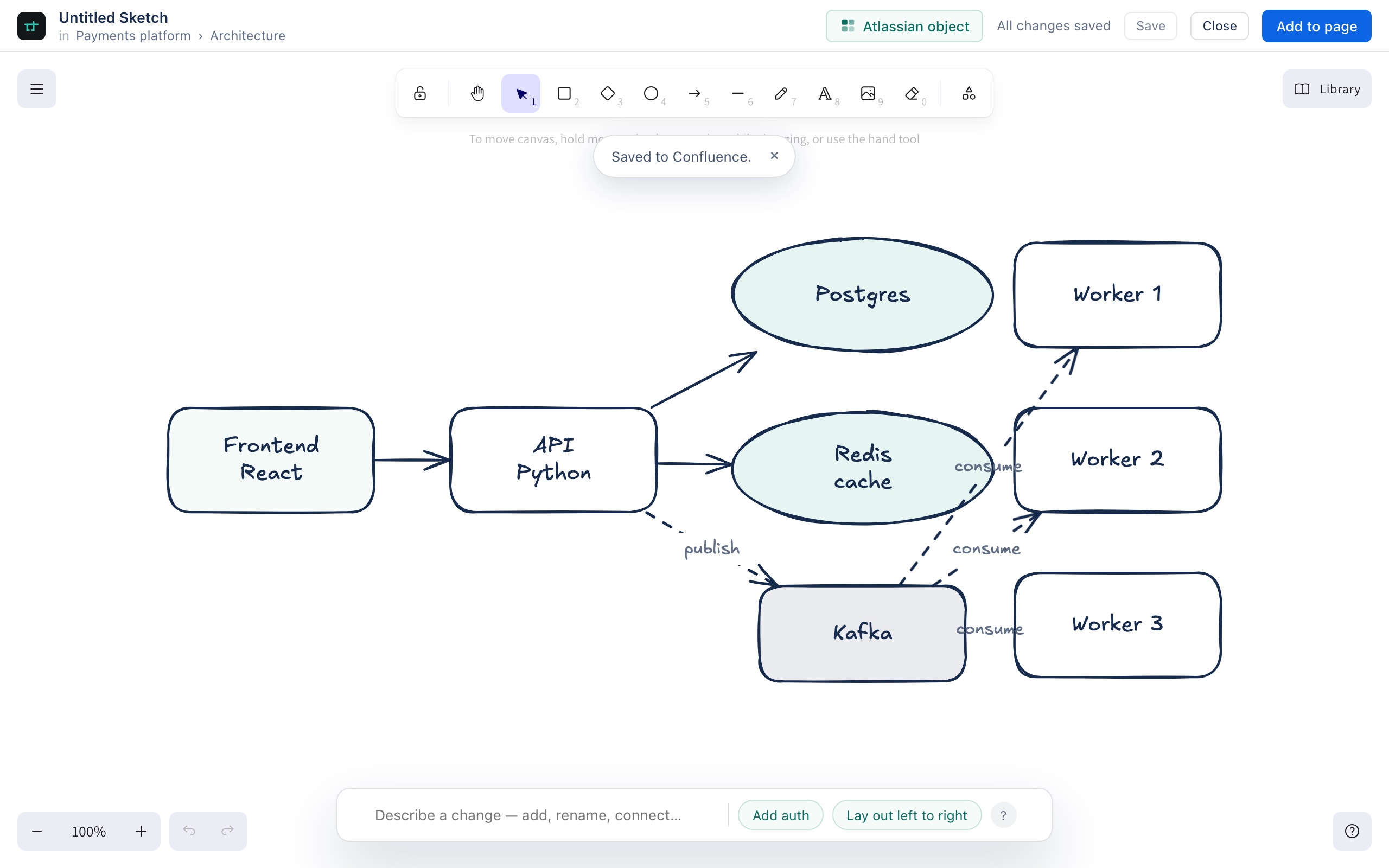
Generation runs on Atlassian-hosted Claude models through Forge — your description and your diagram never leave your Atlassian site. It's included with the paid plan, with sensible per-person and per-site daily limits; if the model can't run, the screen says why instead of drawing something worse.
The list underneath the prompt box is there on purpose: the moment you're about to draw a new architecture diagram is also the moment you're most likely to remember one already exists. Once a space has eight or more Sketches, a filter box appears above the list so you can search by name.
Whichever you choose, you land in the editor — on a blank canvas, or on the Sketch you picked.